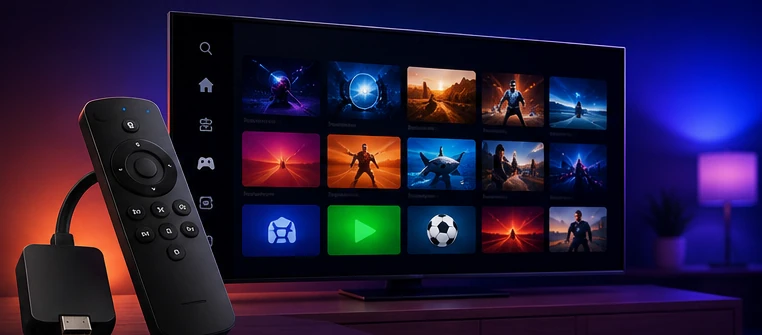
Firestick is popular because it is simple, affordable, and easy to use with a TV remote. For many USA viewers, it is one of the easiest ways to create a flexible IPTV setup in the living room.
However, a smooth Firestick IPTV experience depends on more than the app. Your internet connection, Firestick storage, app settings, router quality, and provider support all affect how well IPTV performs.
Why Firestick Is Popular for IPTV in the USA
Firestick is a small streaming device that connects directly to your TV. It gives users a simple app-based interface, a remote control, and access to many streaming tools. This makes it attractive for IPTV users who want something easier than a computer setup.
- It works well for living room streaming.
- It is easy to control with a remote.
- It supports many streaming apps.
- It is portable and easy to move between TVs.
- It is usually cheaper than buying a new Smart TV.
Before You Set Up IPTV on Firestick
Before adding any IPTV app or login details, check your Firestick first. Many IPTV problems come from basic device issues such as low storage, weak Wi-Fi, or too many background apps.
1. Check Storage Space
Firestick devices can become slow when storage is almost full. If your device has many apps, old files, or unused downloads, IPTV apps may freeze or load slowly.
Remove apps you do not use, clear temporary files, and keep enough free space for the IPTV app to run smoothly.
2. Restart Your Device
A simple restart can fix many temporary issues. Restarting clears active background processes and refreshes the device before you start streaming.
3. Check Internet Connection
Firestick depends heavily on Wi-Fi. If your router is far from the TV, the stream may buffer even if your internet plan looks fast on paper.
For better stability, keep the Firestick close to the router or consider a reliable Ethernet adapter if your setup supports it.
Choosing an IPTV App for Firestick
An IPTV player app is only the player. It does not own or provide the content by itself. The provider gives you login details or a playlist, and the app displays the channels, categories, EPG, and VOD sections.
When choosing an app for Firestick, look for:
- Simple remote control navigation.
- Favorites support.
- EPG support where available.
- Clear categories.
- Good performance on Firestick.
- Regular updates from the app developer.
How to Improve IPTV Performance on Firestick
Firestick IPTV performance can improve a lot with simple maintenance. Use this checklist before live sports, movie nights, or busy streaming times.
Use Strong Wi-Fi or Ethernet
Weak Wi-Fi is one of the most common reasons for buffering. If the Firestick is behind the TV, inside a cabinet, or far from the router, the signal may be weaker than you think.
Move the router closer, use a better Wi-Fi band if available, or use an Ethernet adapter for more stability.
Clear App Cache
IPTV apps can collect cache over time. Clearing cache may help when an app becomes slow, freezes, or fails to load categories correctly.
Close Background Apps
Running many apps in the background can reduce Firestick performance. Close unused apps before starting IPTV, especially before live events.
Test Before Important Events
Do not wait until the last minute before a game, fight, or live event. Test your app early, check categories, and make sure your internet connection is stable.
IPTV Buffering on Firestick: Common Causes
Buffering does not always mean the IPTV provider is bad. It can happen for several reasons:
- Weak Wi-Fi signal.
- Router congestion.
- Old Firestick model.
- Low storage space.
- App cache problems.
- Too many background apps.
- High-quality stream selected on a weak connection.
- Provider-side load during busy events.
For a deeper checklist, read our full guide: IPTV Buffering Fix.
Best Firestick Settings for IPTV
You do not need complicated settings to get a better IPTV experience. Start with simple improvements:
- Keep Firestick updated.
- Remove unused apps.
- Restart the device regularly.
- Use a stable Wi-Fi connection.
- Clear cache when the app becomes slow.
- Use favorites for channels you watch often.
- Test HD and 4K streams before live events.
Organizing IPTV on Firestick
A good IPTV setup is not only about loading channels. Organization matters. Categories, favorites, EPG, search tools, and recently watched sections can make the experience much easier.
Save your most-used categories such as sports, movies, news, local channels, kids, and entertainment. This saves time and makes the app easier for daily use.
Firestick IPTV for Sports Fans in the USA
Many USA viewers use Firestick for sports nights. Firestick can be a strong device for this, but preparation matters. Live sports can create high demand, so test early and avoid last-minute setup.
Content availability depends on your provider, region, subscription, broadcaster rights, and licensing. Always use IPTV responsibly and access only content you are allowed to watch.
For sports-specific tips, read: IPTV for Sports Fans USA.
Firestick vs Smart TV for IPTV
Firestick is often easier for IPTV because it gives you a dedicated streaming device and simple remote navigation. Smart TVs are convenient because they do not require extra hardware, but app availability can vary by TV brand and operating system.
If your Smart TV does not support the IPTV app you want, Firestick can be a useful alternative.
Read also: IPTV on Smart TV USA.
Final Firestick IPTV Checklist
Before you start using IPTV on Firestick, check the following:
- Your Firestick has enough free storage.
- Your internet connection is stable.
- Your IPTV app is trusted and working properly.
- Your login details are correct.
- Your categories and favorites are organized.
- You tested streams before important events.
- You know how to contact support if something goes wrong.
Need IPTV Setup Help on Firestick?
Message 4KSubs on WhatsApp and tell us your Firestick model, app name, and what problem you want to fix. We can help with setup, buffering checks, categories, and basic troubleshooting.
Contact 4KSubs on WhatsAppRelated Guides
FAQ
Can I use IPTV on Firestick in the USA?
Yes, IPTV can work on Firestick when the app is compatible, the device has enough storage, and the internet connection is stable.
Why does IPTV buffer on Firestick?
Buffering may come from weak Wi-Fi, low storage, old device performance, app cache, router congestion, stream quality, or provider-side load.
Is Firestick good for IPTV?
Yes, Firestick is popular for IPTV because it is simple, affordable, and works well for living room streaming when configured properly.
Should I use Wi-Fi or Ethernet for Firestick IPTV?
Ethernet is usually more stable if your setup supports it. If you use Wi-Fi, keep the Firestick close to the router and avoid heavy downloads during live events.