
Quick answer: confirm device, app and match access
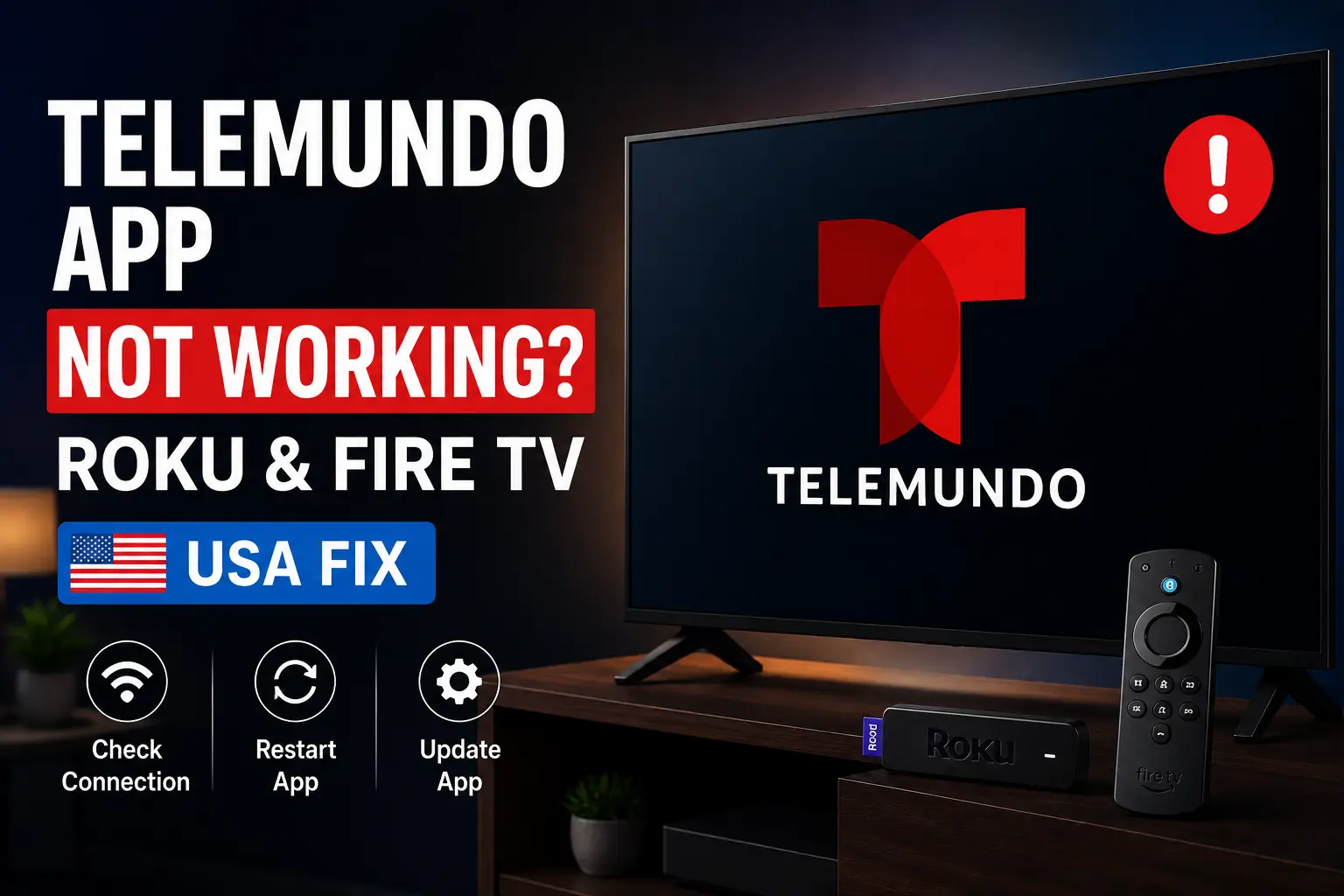
If the Telemundo app is not working on Roku, Fire TV or Samsung TV, start with the basics: confirm the device is supported, update the app, restart the device, check your internet, then confirm that the match or program is available in the app. Do not delete the app first if you do not know your login details. Telemundo’s own app information lists many supported platforms, including Roku and Roku Stick, Fire TV and Fire TV Stick, Samsung TV, VIZIO Smart TV, Chromecast, Apple TV, mobile devices, Fire tablets and computers. That means the app route is valid for many USA households, but the exact experience can still vary by device age, software version and account access.
World Cup 2026 Spanish coverage: what to know
NBCUniversal announced that Telemundo will deliver all 104 FIFA World Cup 2026 matches in Spanish on Peacock and the Telemundo App. It also described Telemundo.com match hubs with schedules, programming information and direct links to stream matches live on Peacock and the Telemundo App. That is useful, but it also means viewers should not assume one device is the only route. If the Roku app fails, you may still be able to use Fire TV, Samsung TV, Peacock, Telemundo.com or another official device route.
Telemundo app not opening on Roku
On Roku, start by checking whether other apps work. If every app fails, troubleshoot the Wi‑Fi. If only Telemundo fails, restart Roku, check for app updates, then remove and reinstall only if needed.- Press Home on the Roku remote.
- Open another app to test internet.
- Restart Roku from Settings.
- Check whether the Telemundo app needs an update.
- Open the app again and test a non-live video.
- Reinstall the app only after restart and update steps fail.
Try 4KSubs Free for 12 Hours First
Before choosing a plan, you can test 4KSubs on your Roku, Fire TV, Smart TV, Android box, phone or tablet. Check the channels, streaming quality and setup first, then continue only if it works well for you.
Telemundo app not working on Fire TV
Fire TV gives you useful app controls. If the Telemundo app freezes or shows a black screen, open Settings, go to Applications, Manage Installed Applications, choose Telemundo, then Force Stop. If the issue continues, Clear Cache and restart Fire TV. Avoid Clear Data unless you are ready to sign in again. Low storage can also break live apps on Fire TV. Delete unused apps and restart the device before a big match.
Samsung TV or Smart TV problems
On Samsung TV and other Smart TVs, app problems often come from old TV software or a long standby session. Restart the TV fully, check the app store for updates, then reopen the app. If the TV is old and the app performance is poor, use Roku, Fire TV, Chromecast or another supported device as the main match-night screen.
Login, provider and stream access errors
Some Telemundo content may ask for sign-in, and Spanish-language coverage may also be available through Peacock depending on the event. If the Telemundo app opens but refuses one stream, confirm whether that stream is available in the app, Peacock, Universo or another official route. Use the official app message as your guide. Do not enter passwords or activation codes into random pages that appear in search results.
Try 4KSubs Free for 12 Hours First
Before choosing a plan, you can test 4KSubs on your Roku, Fire TV, Smart TV, Android box, phone or tablet. Check the channels, streaming quality and setup first, then continue only if it works well for you.
Buffering during Spanish-language live sports
Buffering during soccer is common when the home network is busy. Use Ethernet or 5 GHz Wi‑Fi when possible, pause downloads, restart the router, and keep a backup device ready. If your household is streaming English and Spanish feeds at the same time, remember that two live streams can double the pressure on Wi‑Fi.
Bilingual household setup tip
For major tournaments, prepare both English and Spanish paths. English-language coverage may use FOX, FS1, FOX One or FOX Sports routes. Spanish-language coverage uses Telemundo, Universo, Peacock and the Telemundo app routes. Test both before the match so the household can switch languages without panic.
Related 4KSubs guides
- Peacock World Cup 2026 Not Working? Spanish Fix
- Spanish-Language Streaming Apps in the USA
- How to Watch Mexico World Cup 2026 in Spanish
- Fire TV Setup for English and Spanish Apps
Official sources
- Telemundo: app devices and availability
- NBCUniversal: Telemundo World Cup 2026 multiplatform coverage
- Comcast: Telemundo World Cup 2026 broadcast plans
Frequently asked questions
Telemundo lists Roku, Roku Stick, Fire TV, Fire TV Stick, Samsung TV, VIZIO Smart TV, mobile devices, Chromecast and other platforms as supported app options.
NBCUniversal says all 104 World Cup 2026 matches are available in Spanish on Peacock and the Telemundo App, with Telemundo also building match hubs and links for coverage.
Common causes include weak Wi-Fi, old app versions, overloaded home networks, low device storage, or a temporary event-side issue.
Restart the app, restart the device, clear cache on Fire TV if available, check updates, and try the official Peacock or Telemundo.com route if the device app still fails.
No. Use official Telemundo, Universo, Peacock and authorized apps. Random streams can be unsafe, unstable or unlawful.
Yes. 4KSubs offers a free test so viewers can check device compatibility and streaming quality before choosing a plan.