
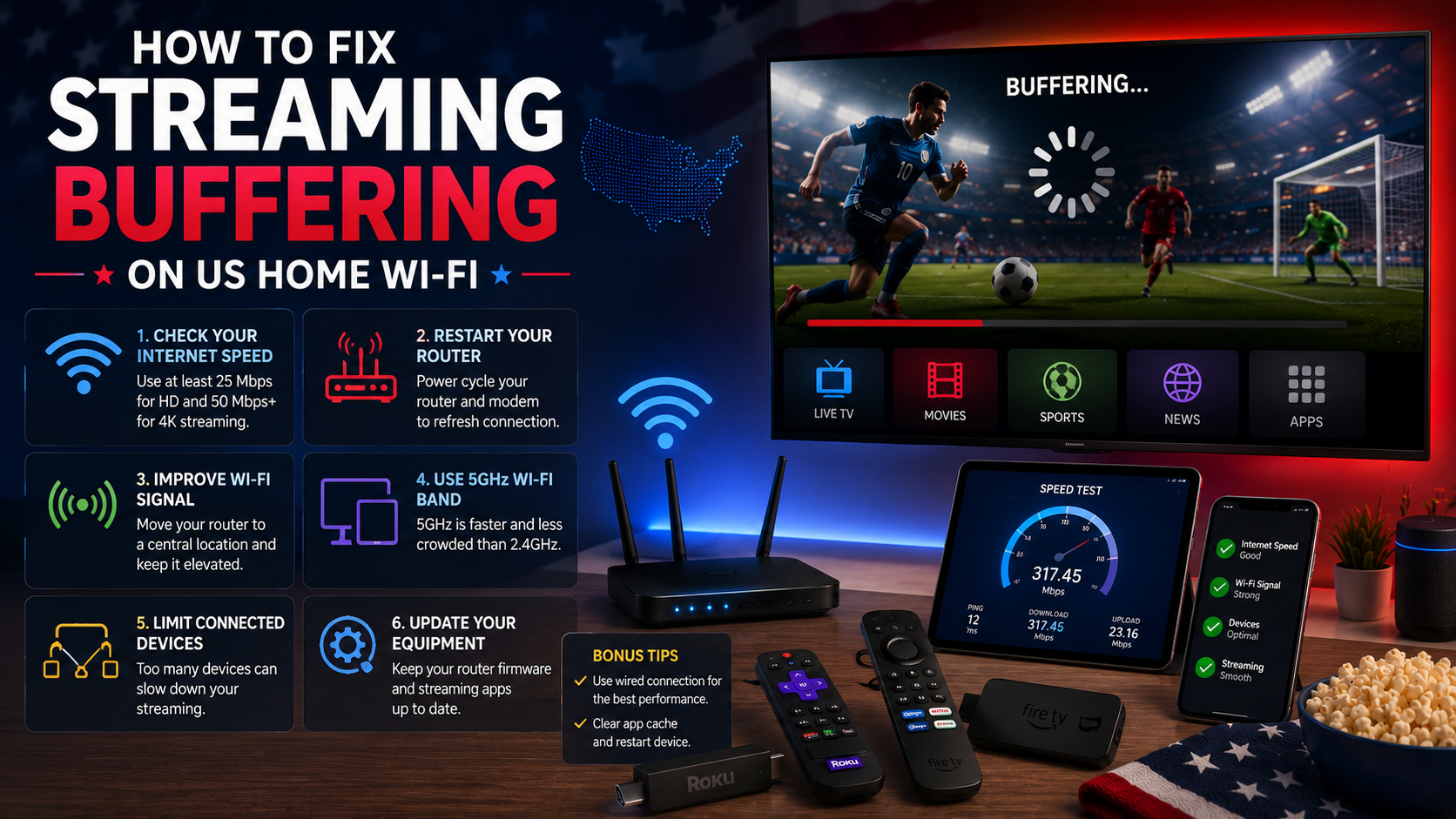
Identify the failing part
Test the same official stream on a second device connected to the same network. If every device buffers, investigate the router, internet connection, outage status or streaming service. If only one television buffers, focus on that device, app and Wi-Fi signal.
Test at the television
A speed test beside the router does not represent a Roku or Smart TV in another room. Run the test on the streaming device when possible, or stand beside the television with a phone connected to the same Wi-Fi band. Repeat the test and look for consistency.
Try 4KSubs Free for 12 Hours First
Before choosing a plan, you can test 4KSubs on your Roku, Fire TV, Smart TV, Android box, phone or tablet. Check the channels, streaming quality and setup first, then continue only if it works well for you.
Use Ethernet as the reference
Connect the television or streaming device directly to the router. If buffering disappears, the incoming internet service is probably adequate and the local Wi-Fi needs improvement.
Place the router correctly
The FCC recommends a central location for stronger home coverage and notes that extenders or mesh systems can help in larger homes. Keep the router open, elevated and away from metal cabinets, microwaves and dense walls.
- Do not hide the router behind the television.
- Keep mesh nodes where they still receive a strong backhaul.
- Use Ethernet backhaul when practical.
- Check which node the television actually uses.
Choose 5 GHz or 2.4 GHz
Xfinity notes that 5 GHz is better for high-bandwidth uses such as streaming video and normally has less interference. It has shorter range, while 2.4 GHz reaches further. Choose the band that remains stable at the television.
Pause background traffic
- Game and operating-system updates
- Cloud photo backups
- Large work uploads
- Multiple 4K streams
- Security-camera uploads
Restart in the right order
- Close the streaming app.
- Restart Roku, Fire TV or the Smart TV.
- Restart the router only when several devices are affected.
- Wait for the connection to return fully.
- Test one stream before starting heavy downloads again.
Update the app and device
Roku, Amazon, Samsung and LG all recommend software updates as an early troubleshooting step. Keep enough storage free and reinstall the official app when one service fails while others work.
Lower quality temporarily
Use Auto or HD instead of forcing 4K. Stable HD is better than a higher resolution that repeatedly freezes. If lower quality works, improve the network before increasing it again.
Provider-specific tools
Xfinity, AT&T and Spectrum provide official apps or support tools for connection tests, outage checks and gateway troubleshooting. Use the provider's official account rather than paying an unknown third party to “repair” the Wi-Fi.
When to call the provider
Record the date, time, wired speed, Wi-Fi speed and whether multiple devices failed. Contact the provider when wired devices also drop, the modem shows a fault light or performance remains far below the plan.
Related US guides
Official sources
- FCC home network tips
- Xfinity Wi-Fi optimisation
- AT&T connection optimisation
- Spectrum Wi-Fi guidance
Try 4KSubs Free for 12 Hours First
Before choosing a plan, you can test 4KSubs on your Roku, Fire TV, Smart TV, Android box, phone or tablet. Check the channels, streaming quality and setup first, then continue only if it works well for you.
Frequently asked questions
The incoming connection may be fast while the TV has weak Wi-Fi, interference, packet loss or an app problem.
For a fixed television, Ethernet is normally more stable and is the best diagnostic test.
Use 5 GHz at short range for higher bandwidth. Use 2.4 GHz when walls and distance make 5 GHz weak.
No. Mesh nodes need a strong wired or wireless backhaul and good placement.
DNS can affect startup but usually does not fix weak Wi-Fi, congestion or low bandwidth.
Contact the provider when multiple wired devices have the same issue, speeds remain low or the connection repeatedly drops.
Need help with your device?
Send the device model, app name and issue. You can write in English or Spanish.
Contact 4KSubs