
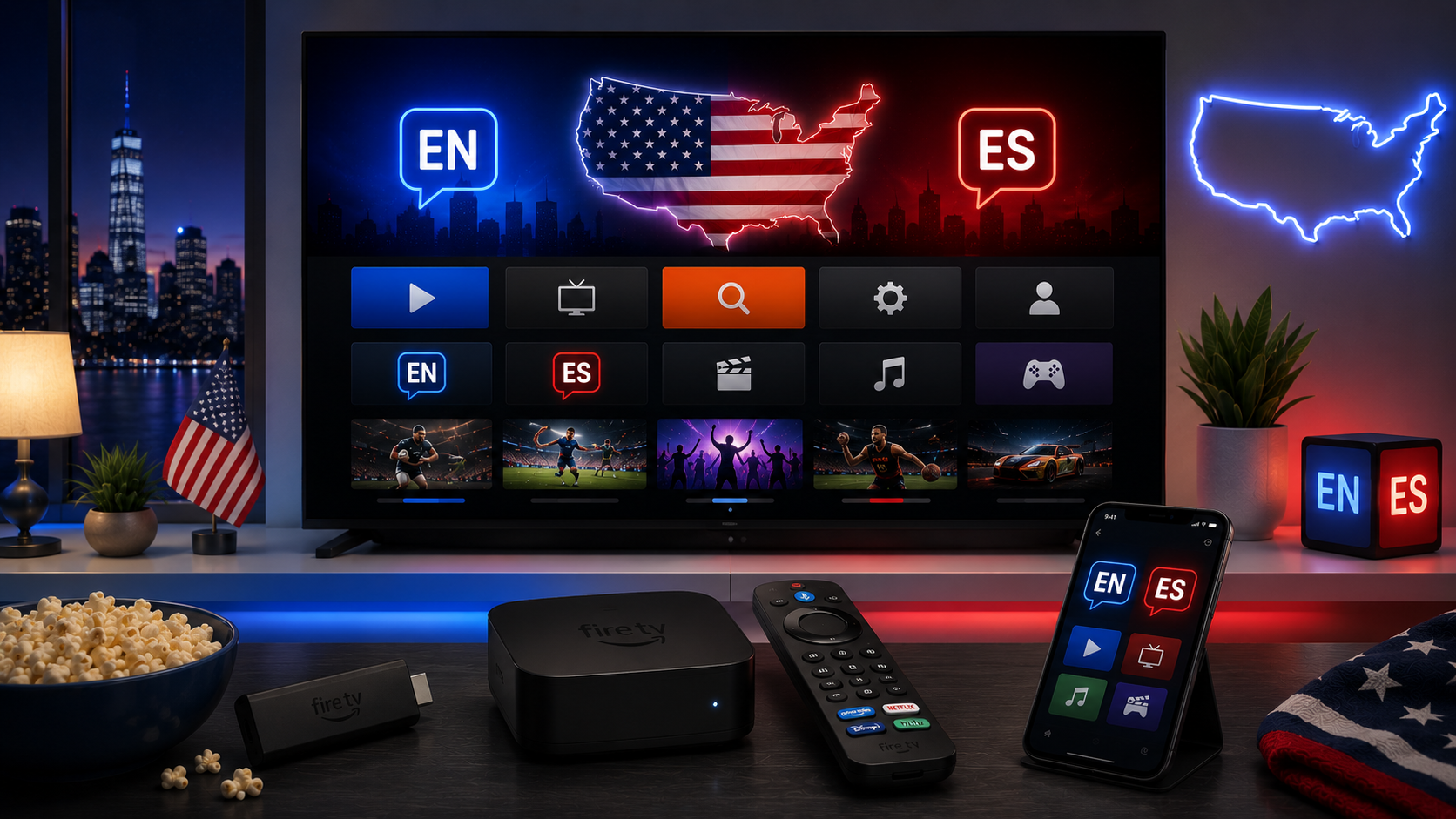
Connect Fire TV correctly
- Connect Fire TV to an HDMI port.
- Use the included USB cable and mains adapter.
- Select the correct HDMI input.
- Pair the remote and choose the home Wi-Fi network.
- Sign in with the correct Amazon account.
- Install the latest Fire OS update.
Install official streaming apps
Amazon instructs users to search from the Fire TV main menu or open the Amazon Appstore, select the app and download it. Use the official app listing and review the developer name before signing in.
For bilingual viewing, install only the services used by the household. English and Spanish options may be inside the same app through profiles, alternate audio or captions.
Try 4KSubs Free for 12 Hours First
Before choosing a plan, you can test 4KSubs on your Roku, Fire TV, Smart TV, Android box, phone or tablet. Check the channels, streaming quality and setup first, then continue only if it works well for you.
English and Spanish app planning
- Place frequently used apps near the front of the Home screen.
- Create separate profiles where the service supports them.
- Use purchase PINs for children and guests.
- Check whether Spanish audio is available for the exact programme.
- Review location and subscription rules before a live event.
Update Fire TV
Open Settings, My Fire TV or Device and Software, About and Check for System Update. Complete updates before a major match or family movie night. Do not disconnect power while an update is installing.
Clear cache safely
- Open Settings.
- Select Applications.
- Select Manage Installed Applications.
- Choose the problem app.
- Select Clear Cache.
Clear Data is more disruptive because it normally removes the login and local settings. Use Clear Cache first.
Free storage
Uninstall apps no one uses. Fire TV menus and apps may slow down when storage is nearly full. Keep enough space for updates and temporary video files.
Improve Wi-Fi and streaming stability
- Use 5 GHz Wi-Fi when the router is nearby.
- Use an HDMI extender to move the stick away from the television body.
- Pause console and computer downloads.
- Use an Ethernet adapter for a fixed high-use television.
- Restart the router only when multiple devices are affected.
App crashes or refuses to load
Amazon's official sequence includes clearing cache and data, uninstalling and reinstalling the app, and restarting Fire TV. Before clearing data, confirm the account password and subscription details.
Picture, HDR and sound
Set resolution to Auto during initial setup. Forcing 4K or HDR can produce a blank screen if the television, HDMI input or app does not support it. Bluetooth audio may add delay; test the TV speakers or an HDMI soundbar.
Use captions and Spanish audio
Playback controls differ by app. Look for Audio, Language, Subtitles or Closed Captions. Spanish availability depends on the title and service, not only the Fire TV language.
Remote and mobile control
The official Fire TV mobile app can work as a remote when the phone and Fire TV are on the same network. Replace remote batteries before a live event and re-pair the remote if navigation becomes unreliable.
Related US guides
- Spanish-language streaming apps in the USA
- Smart TV apps for bilingual households
- US Wi-Fi buffering fixes
Official sources
Try 4KSubs Free for 12 Hours First
Before choosing a plan, you can test 4KSubs on your Roku, Fire TV, Smart TV, Android box, phone or tablet. Check the channels, streaming quality and setup first, then continue only if it works well for you.
Frequently asked questions
Search from the Fire TV main menu or open the Amazon Appstore, choose the official app and download it.
Use the supplied mains adapter where possible. A weak USB port can cause restarts or unstable performance.
Open Settings, Applications, Manage Installed Applications, select the app and choose Clear Cache.
Yes, when the app is available in the US Amazon Appstore and supports your Fire TV model.
Update Fire OS, restart the device, clear the app cache, free storage and reinstall the official app.
No. For normal streaming, use official apps from the Amazon Appstore. Unknown files can be unsafe or incompatible.
Need help with your device?
Send the device model, app name and issue. You can write in English or Spanish.
Contact 4KSubs