
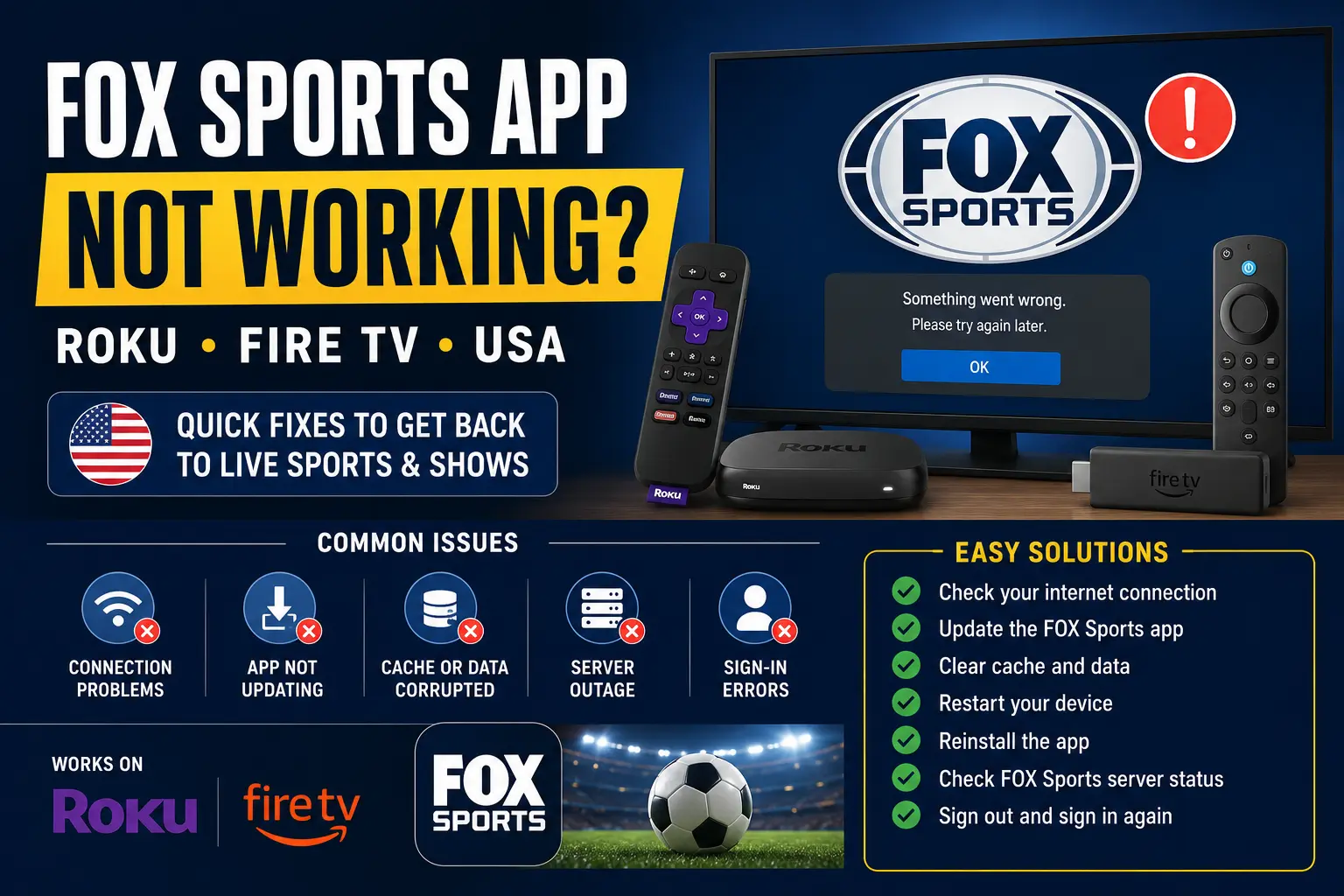
Quick answer: what to try first
If the FOX Sports app is not working on Roku or Fire TV, start with the simple fixes before deleting anything. Open another app to confirm your internet works, restart the device, check for app or system updates, then reopen FOX Sports or FOX One and sign in again if required. For Roku, official support recommends checking Wi-Fi, restarting the device, and removing/reinstalling the app if it still will not load. For Fire TV, Amazon provides app-cache and restart options through the Settings menu.
During World Cup 2026, this matters because FOX Sports announced that all 104 matches air live across FOX and FS1, with streaming coverage through FOX One and the FOX Sports app. In other words, a device issue can look like a broadcaster issue, and a sign-in issue can look like a Wi-Fi issue. The best fix is to separate the problem step by step.
Before you troubleshoot: confirm the match is available
Before changing settings, confirm that the match is actually available on the channel or app you are opening. Some games may be on FOX, some may be on FS1, and app access can depend on your TV provider, FOX One account, device support and location inside the United States.
- Check the match page or official schedule before kickoff.
- Confirm whether the game is listed under FOX, FS1, FOX One or the FOX Sports app.
- Make sure your account has the correct access.
- Open the app at least 30 minutes before the match, not at kickoff.
- Keep a Spanish-language official option in mind if your household uses Telemundo, Universo or Peacock.
FOX Sports app not loading on Roku
On Roku, app problems often come from one of four places: the internet connection, the app itself, the Roku software, or the account login. Start with a soft approach that does not delete your accounts.
- Press Home on the Roku remote.
- Open Settings, then Network, then About to check connection status.
- Use Check connection if your Roku shows a network problem.
- Restart Roku from Settings, System, Power, then System restart. If your model has no Power submenu, continue to System restart.
- Highlight the FOX Sports app, press the star button, and check for updates if the option appears.
- Open the app again and test a live or replay item.
If only FOX Sports fails while other apps work, the issue is probably app-specific or account-specific. If every app buffers or fails, focus on Wi-Fi, router placement, ISP speed or too many devices using the same connection.
Try 4KSubs Free for 12 Hours First
Before choosing a plan, you can test 4KSubs on your Roku, Fire TV, Smart TV, Android box, phone or tablet. Check the channels, streaming quality and setup first, then continue only if it works well for you.
When to remove and reinstall the Roku app
Do not remove the app as your first step if you do not know your login information. Reinstalling can sign you out. However, if the FOX Sports app will not open, crashes repeatedly, or shows a black screen after restart and updates, removing and reinstalling is a reasonable next step.
- Press Home on the Roku remote.
- Highlight FOX Sports.
- Press the star button to open options.
- Select Remove app and confirm.
- Restart the Roku device.
- Reinstall the official app from the Roku Streaming Store.
- Sign in again using the official on-screen instructions.
Use only the official activation page shown by the real app. Do not enter activation codes into random websites, and do not pay a third-party “support” page to activate a free device app.
FOX Sports app not working on Fire TV
On Fire TV, the most common matchday symptoms are black screen, spinning loading icon, frozen app, audio without picture, or app returning to the home screen. Fire TV gives you useful app controls without factory resetting the device.
- Open Settings from the Fire TV home screen.
- Select Applications.
- Select Manage Installed Applications.
- Select the FOX Sports app.
- Choose Force Stop, then open the app again.
- If the issue continues, return to the same menu and choose Clear Cache.
- Restart Fire TV from Settings, My Fire TV, Restart.
Clear Cache is normally safer than Clear Data because it removes temporary files without intentionally wiping app data. Clear Data can sign you out and reset app storage, so use it only when you are ready to log in again.
Fire TV black screen or frozen live match
A black screen during live sports can happen when the app loads but the video player fails. This is different from a no-internet error. Try these steps in order:
- Press Back and reopen the live stream from the match page.
- Force stop the app and reopen it.
- Clear the app cache.
- Restart Fire TV from the menu.
- Unplug the Fire TV power adapter briefly, then reconnect it.
- Check whether other live apps are also failing.
If the app opens but the stream fails only for one specific match, the problem may be service-side, schedule-side or account-side. Check the official FOX match page and avoid making destructive changes while the issue may be temporary.
Sign-in loop, activation code or TV provider problem
A sign-in loop is not the same as buffering. It usually means the app cannot verify your account. This can happen after an app update, a provider password change, an expired session, or a mismatch between your TV provider access and the channel you are trying to watch.
- Sign out of the app, then sign in again.
- Use a phone or computer on the same household account if the app asks for activation.
- Check that your TV provider package includes the relevant FOX or FS1 access.
- Turn off browser privacy extensions temporarily if they block the activation page.
- Do not reuse an old activation code; generate a fresh code from the TV screen.
If you changed your TV provider password recently, sign in through the provider website first, then return to the FOX app activation flow.
Buffering during World Cup 2026 live matches
Live soccer is less forgiving than movies because the stream needs to stay close to real time. A connection that works for on-demand content can still struggle during a high-demand live match. Start by reducing competition on your home network.
- Pause game downloads, cloud backups and large phone updates.
- Move the streaming device closer to the router.
- Use Ethernet when your device supports it.
- Restart the modem/router before a major match if your connection has been unstable.
- Use 5 GHz Wi-Fi near the router and 2.4 GHz when distance or walls are the problem.
- Keep the TV app open early enough to finish updates before kickoff.
On Roku, official Wi-Fi guidance includes checking the correct network and password, testing another device, restarting Roku, and restarting the router or modem. Roku also lists weak Wi-Fi and slow internet as common error-code causes.
FOX Sports vs FOX One: which app should you open?
The exact best app depends on your account. FOX Sports has long been used for live sports with provider authentication, while FOX One is FOX’s newer streaming option for FOX content and World Cup coverage. If one app fails, check whether the other is supported on your device and account, but do not assume both work the same way for every user.
A good matchday approach is to install and test the official apps before the tournament stage you care about. Open the app, confirm the match page, test a replay or live item, and make sure you know which email, TV provider or subscription is connected.
Try 4KSubs Free for 12 Hours First
Before choosing a plan, you can test 4KSubs on your Roku, Fire TV, Smart TV, Android box, phone or tablet. Check the channels, streaming quality and setup first, then continue only if it works well for you.
Roku vs Fire TV: fastest fixes by symptom
| Symptom | Roku fix | Fire TV fix |
|---|---|---|
| App will not open | Restart Roku, check app update, reinstall if needed | Force Stop, Clear Cache, restart Fire TV |
| Black screen | Restart, update app, reinstall official channel | Force Stop, Clear Cache, restart, then reinstall if needed |
| Buffering | Check Network > About, move closer to router | Restart router, reduce downloads, use stronger Wi-Fi |
| Sign-in loop | Generate a new activation code and verify provider | Clear cache first, then sign in again if needed |
| Every app fails | Troubleshoot Wi-Fi or router, not just FOX | Troubleshoot network, restart modem/router |
Spanish-language backup for bilingual households
Many USA households watch soccer in both English and Spanish. If the English app is giving you problems, do not wait until the second half to check your Spanish option. For World Cup 2026, Spanish-language coverage in the United States is associated with Telemundo, Universo and Peacock depending on the match and access.
This does not mean every app is free or that every match appears in the same place. It means bilingual households should prepare both paths early: English through FOX/FS1 and official FOX streaming options, and Spanish through the official Spanish-language broadcaster options available to them.
What not to do when the app fails
The worst moment to experiment is five minutes before kickoff. Avoid risky shortcuts that can make the device less stable or put your account at risk.
- Do not enter activation codes on random websites.
- Do not install unknown apps promising free live sports.
- Do not factory reset the device before trying restart, update and cache steps.
- Do not change router settings you do not understand during a live match.
- Do not share your TV provider login with strangers or support pages.
Unverified streams are often unreliable and may expose viewers to malware, fake login pages or pop-ups. For a major event, official apps are safer and more predictable.
One-hour matchday checklist
- Confirm the match channel and kickoff time in your USA time zone.
- Open the app and make sure it loads.
- Check that your FOX, FOX One or TV-provider sign-in is active.
- Restart Roku or Fire TV if menus feel slow.
- Pause downloads and updates on other devices.
- Keep the remote, power cable and Wi-Fi password nearby.
- Prepare the Spanish-language official option if your household wants it.
Related 4KSubs guides
- How to Watch World Cup 2026 Knockout Matches in the USA
- How to Watch World Cup 2026 in the USA: English and Spanish Guide
- Roku Streaming Setup Guide for USA Viewers
- Fire TV Setup for English and Spanish Apps in the USA
- How to Fix Streaming Buffering on US Home Wi-Fi
Official sources
- FOX Sports World Cup 2026 broadcast schedule announcement
- Roku: issues playing content or loading apps
- Roku: Wi-Fi troubleshooting
- Amazon: clear app data and cache on Fire TV
- Amazon: restart your Fire TV device
Frequently asked questions
The most common reasons are a temporary service issue, weak Wi-Fi, an outdated Roku channel, a TV-provider sign-in problem, or a device that needs to be restarted.
A black screen can happen when the app cache is stuck, the Fire TV needs a restart, the app is outdated, or the internet connection is unstable during live video.
Some FOX Sports app streams require TV-provider authentication. FOX One may also be available as a FOX streaming option, depending on your account and supported device.
Yes. FOX Sports announced that all 104 World Cup 2026 matches air live across FOX and FS1, with FOX One and the FOX Sports app included in the streaming coverage.
Only after checking for updates and restarting. If the app still will not load, Roku support recommends removing and reinstalling the app.
Open the app early, confirm your sign-in, check the live channel, restart your device if needed, and avoid heavy downloads on the same Wi-Fi network.
No. Unverified streams can be unsafe, unreliable or unlawful. Use official broadcasters and authorized apps available in the United States.