
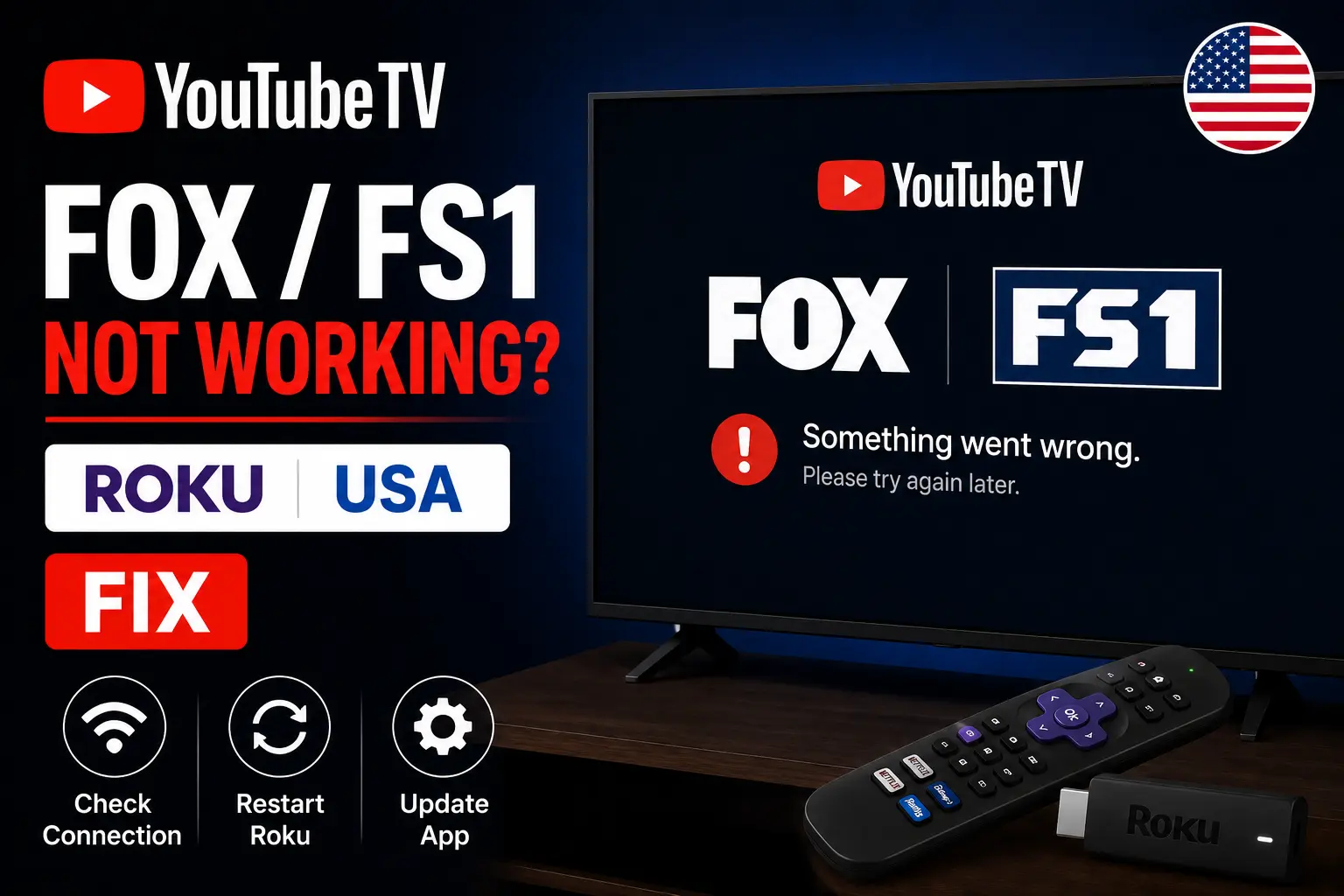
Quick answer: fix location, app and network first
When FOX or FS1 will not play on YouTube TV through Roku, start with three checks: confirm your current playback area, update the YouTube TV app and Roku system, and test your internet connection. Google’s YouTube TV troubleshooting guidance recommends power cycling the device, power cycling the router, checking app/device updates, and reinstalling the app if needed. Do not remove YouTube TV as your first move if you are not sure of your login details. Reinstalling can fix corrupted app data, but it can also sign you out during a match-night rush.
Why this issue is different from normal buffering
A normal buffering issue affects many apps or all channels. A YouTube TV FOX/FS1 issue may affect only live channels, only your local station, or only your Roku. That is why location matters. YouTube TV uses a home area and current playback area to determine the live channels you can watch. If YouTube TV thinks your Roku is in the wrong playback area, you may see the wrong local content or a playback error even while your internet is working.
Update the current playback area
If the problem looks like a location error, update the current playback area from the TV app. Google’s help page says that on a smart TV you can open YouTube TV, select your profile photo, choose Location, then update the current playback area using a mobile device verification page.- Open YouTube TV on Roku.
- Select your profile photo.
- Go to Location.
- Choose Update next to Current playback area.
- Use your phone at the verification page shown by YouTube TV.
- Allow location access on the phone so YouTube TV can verify the area.
Try 4KSubs Free for 12 Hours First
Before choosing a plan, you can test 4KSubs on your Roku, Fire TV, Smart TV, Android box, phone or tablet. Check the channels, streaming quality and setup first, then continue only if it works well for you.
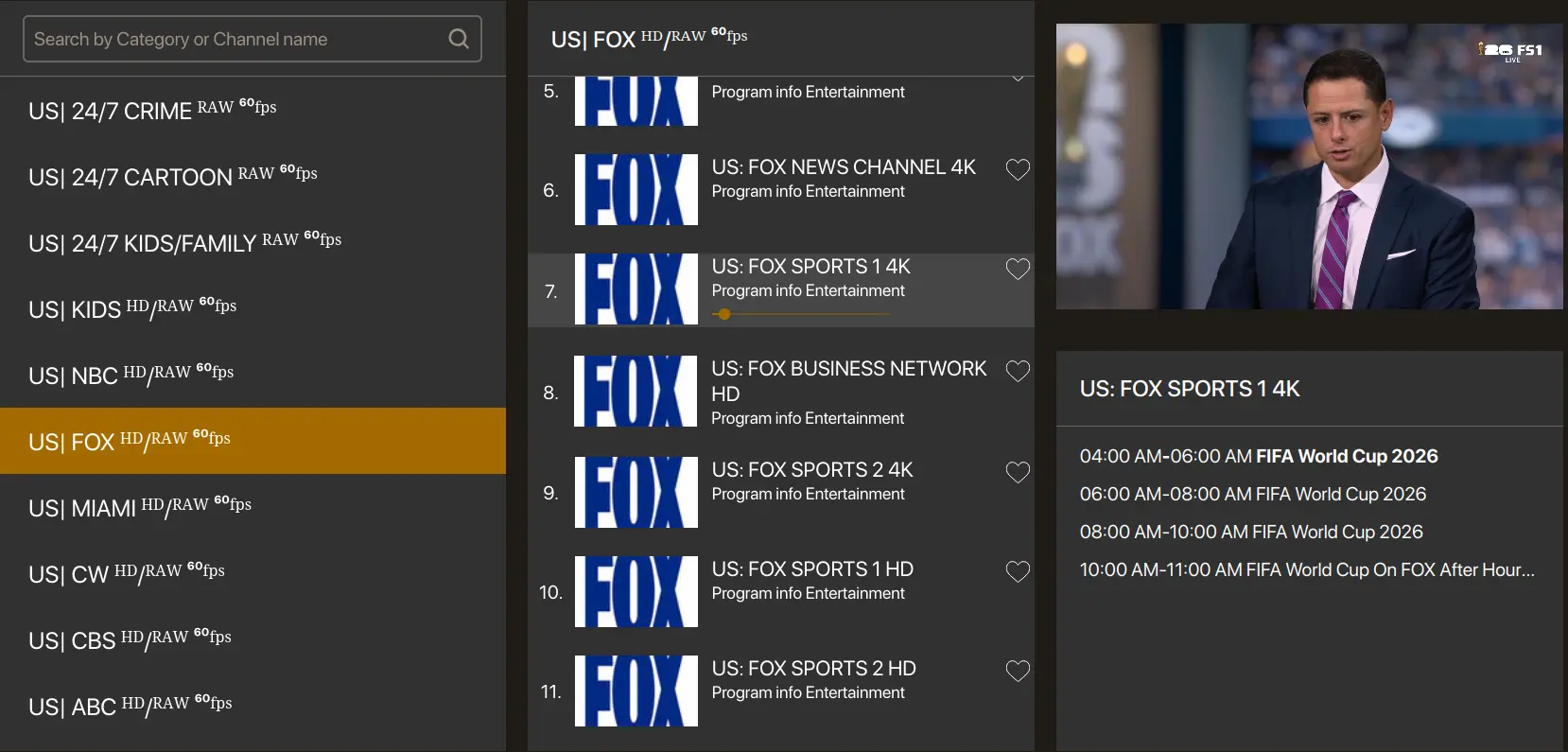
Roku restart and update steps
If location is correct, move to Roku basics. Restart the Roku device from system settings or unplug it briefly from power. Then check for Roku system updates and app updates. If the Live Guide loads slowly or the app freezes, restarting clears temporary state that builds up after long standby sessions. If only YouTube TV fails, focus on the app. If Netflix, Hulu, Peacock and other apps also buffer, focus on Wi‑Fi and the router first.
YouTube TV Live Guide looks broken
Some users see Live Guide or channel-grid issues differently from normal video buffering. If the guide appears but the live channel does not play, test direct search for FOX or FS1, restart the app, then restart Roku. You can also test YouTube TV on your phone or computer to see whether the problem is account-wide or Roku-specific. If the same live channel works on your phone but not on Roku, the Roku app, memory, software or device age may be part of the problem.
Fix buffering on FOX or FS1 inside YouTube TV
For live sports, your home network matters. Restart the router before the game if your Wi‑Fi has been unstable, use Ethernet when available, pause game downloads, and keep phones from backing up videos during the match.- Use 5 GHz Wi‑Fi when the router is close.
- Use Ethernet for the main TV when possible.
- Move the Roku stick away from the hot back of the TV with an HDMI extender.
- Restart the modem/router earlier, not at kickoff.
- Check another live channel to separate app issues from channel issues.
Try 4KSubs Free for 12 Hours First
Before choosing a plan, you can test 4KSubs on your Roku, Fire TV, Smart TV, Android box, phone or tablet. Check the channels, streaming quality and setup first, then continue only if it works well for you.
When to reinstall YouTube TV on Roku
Reinstall only after restart, update and location checks fail. Removing and reinstalling can clear corrupted app data, but it can also require a fresh sign-in. Keep your Google account login and any two-step verification device nearby. After reinstalling, test YouTube TV before the event starts. Do not wait for the national anthem or kickoff to confirm the app works.
Use a backup device
A backup can be simple: phone, tablet, browser, Smart TV app, Fire TV, Apple TV or another Roku. YouTube TV can run on smart TVs, streaming devices, computers and mobile devices, so test a second device before match time. If one Roku app fails, you may still have another official route through the same account.
Related 4KSubs guides
- Roku Streaming Setup Guide for USA Viewers
- FOX Sports App for Roku Setup
- Fix Streaming Buffering on US Home Wi‑Fi
- Live Sports Viewing Guide for the USA
Official sources
- Google Help: troubleshoot YouTube TV streaming issues
- Google Help: manage YouTube TV home area or current location
- Google Help: watch YouTube TV on supported devices
- YouTube TV: devices and ways to watch
Frequently asked questions
The issue can come from YouTube TV location verification, app or Roku updates, weak Wi-Fi, a temporary app issue, or a channel package/access problem.
Google says TV users can open YouTube TV, go to profile photo, Location, and update the current playback area using a mobile device at the verification page.
Power cycle the Roku device, power cycle the router, check for app and Roku system updates, and reinstall the YouTube TV app only if simpler fixes fail.
Yes. Google lists computers, smart TVs, streaming devices and mobile devices as supported ways to watch YouTube TV in the United States.
Buffering usually comes from Wi‑Fi congestion, weak signal, router issues, app/device updates or too many devices using the network.
Yes. 4KSubs offers a free test so viewers can check their device, channel list and stream quality before choosing a plan.