
Quick answer: confirm device support first
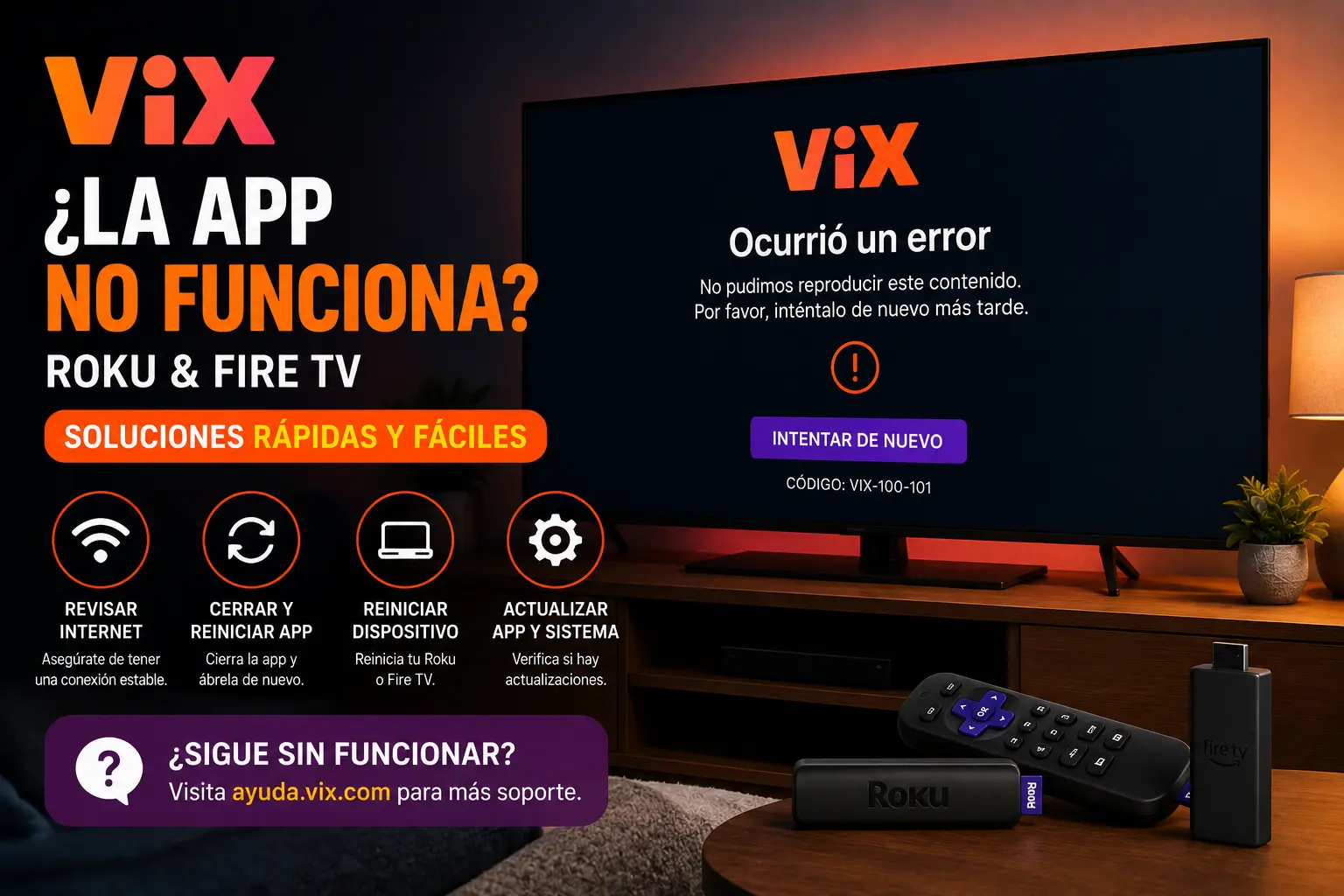
ViX help says the service supports mobile, tablet, web and Smart TV devices including Android TV, Fire TV, Roku, Samsung TV, LG TV, Apple TV, VIDAA and Vizio, with notes about compatibility for some TV platforms. That means a playback issue can be caused by device support, app version, account login or network quality.
If the app is missing from your device store, check compatibility first. If it appears but fails to play, update the app, restart the device, sign in again and test Wi-Fi.
Try 4KSubs Free for 12 Hours First
Before choosing a plan, you can test 4KSubs on your Roku, Fire TV, Smart TV, Android box, phone or tablet. Check the channels, streaming quality and setup first, then continue only if it works well for you.
ViX not working on Roku
On Roku, start with the basic checks: confirm the Roku has internet, restart the Roku, update the system software, remove and reinstall the ViX app only if restart and update do not work, then sign in again. If the app opens but one show or live channel does not play, the problem may be account or content availability.
Roku devices also depend on system updates. If a very old device cannot update, a newer Roku or Fire TV device may be easier than repeated troubleshooting.
- Open the app early, not at kickoff.
- Confirm your account and plan access.
- Restart the streaming device.
- Update the app and device software.
- Test another live or on-demand item.
- Use stronger Wi-Fi or Ethernet where possible.
ViX not working on Fire TV
ViX publishes installation steps for Amazon Fire devices and says it is compatible with Fire TV Stick and Fire TV-enabled Smart TVs. If the app fails after installation, force stop the app, clear cache, restart Fire TV and update the app. Avoid clearing data unless you are ready to sign in again.
Fire TV storage can cause app crashes. If the device is nearly full, delete unused apps and restart before testing ViX again.
Black screen, buffering or stuck loading
A black screen can happen when the app loads but the video player fails. Buffering often comes from Wi-Fi congestion, weak signal or too many devices using the connection. Restart your router, use 5 GHz Wi-Fi near the router, pause downloads and test another app to see whether the problem is ViX or the whole network.
If other apps are fine and only ViX fails, check app updates and account status. If every app buffers, troubleshoot the home network first.
Spanish-language backup planning
Bilingual USA households should keep official Spanish-language options organised before big events. ViX, Telemundo, Peacock and other official apps each have different account and device paths. Do not wait until the show or match starts to discover which app is installed on which TV.
Avoid random free stream links. They can be unsafe, unstable or unlawful, and they usually do not offer account support when a live event fails.
Try 4KSubs Free for 12 Hours First
Before choosing a plan, you can test 4KSubs on your Roku, Fire TV, Smart TV, Android box, phone or tablet. Check the channels, streaming quality and setup first, then continue only if it works well for you.
Related 4KSubs guides
- FOX Sports App for Roku: Install and Activate
- YouTube TV FOX or FS1 Not Working on Roku?
- Telemundo App Not Working? USA Spanish Fix
- Fix Streaming Buffering on US Home Wi-Fi
Official sources
Frequently asked questions
Common causes include an outdated Roku app, a stuck sign-in session, weak Wi-Fi, unsupported device software or a temporary content issue.
ViX help says the app is compatible with Fire TV Stick and Fire TV-enabled Smart TVs.
ViX lists mobile, tablet, web and Smart TV options including Android TV, Fire TV, Roku, Samsung TV, LG TV, Apple TV, VIDAA and Vizio, with compatibility notes.
Buffering usually comes from Wi-Fi congestion, weak signal, old app versions, low device storage or heavy network use during live content.
Yes. 4KSubs offers a free test so viewers can check device compatibility, channel list and streaming quality before choosing a plan.